
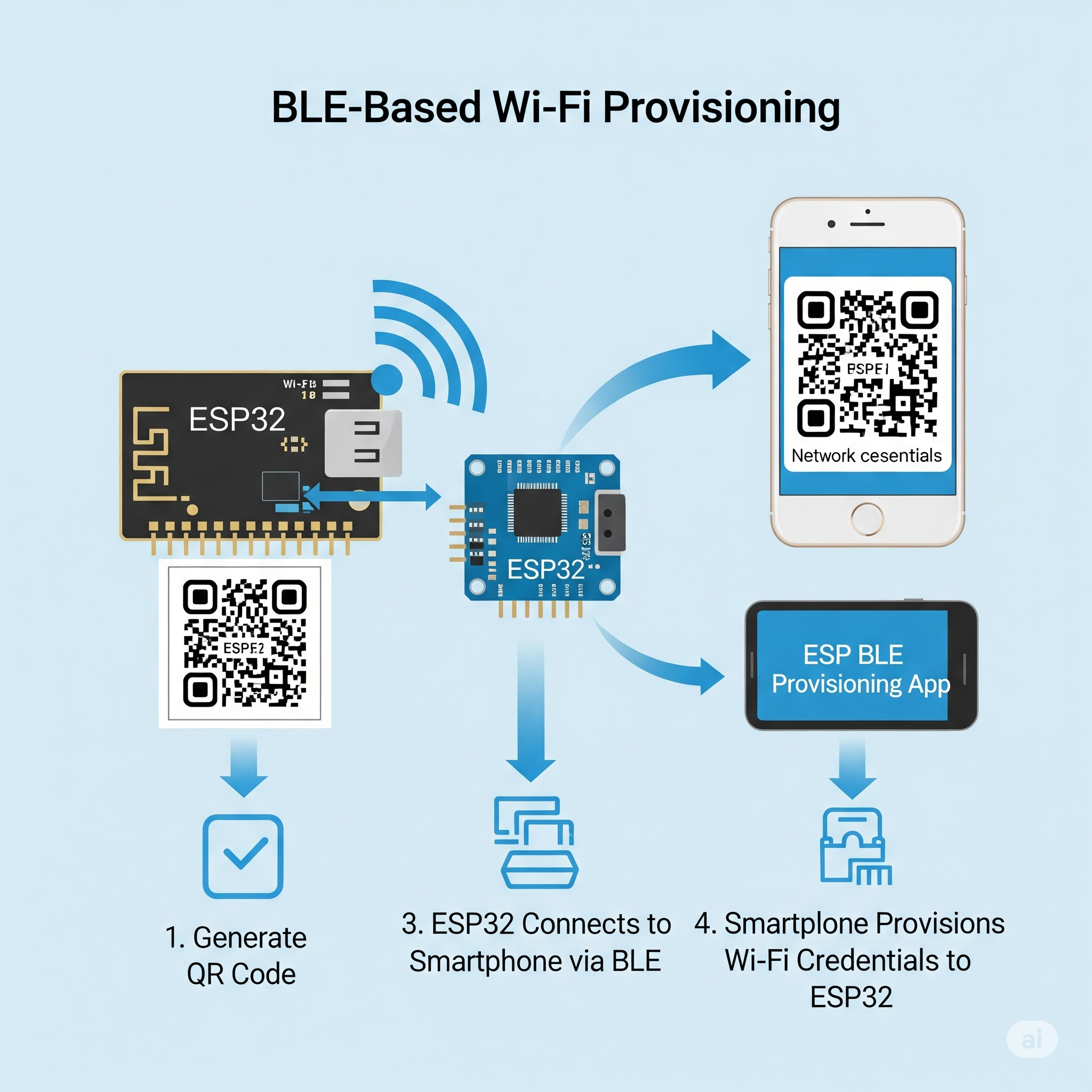
Provisioning an ESP32 device with Wi-Fi credentials securely and conveniently is crucial for many IoT applications. In this tutorial, we demonstrate how to configure Wi-Fi on an ESP32 using Bluetooth Low Energy (BLE) and a QR code, making it easy for users to onboard devices using Espressif’s ESP BLE Provisioning mobile app.
What You’ll Learn
- How to provision ESP32 using BLE
- How to display a QR code that users scan with a mobile app
- How ESP32 connects to Wi-Fi after receiving credentials
- How to integrate custom data handling during provisioning
Prerequisites
- ESP32 board (e.g., ESP32-DevKitC)
- ESP-IDF environment (v4.4+ recommended)
- Mobile phone with the ESP BLE Provisioning app installed
- PC with USB to flash code
- Basic knowledge of C and embedded systems
What Is BLE-Based Provisioning?
BLE provisioning allows users to securely transmit Wi-Fi credentials from their phone to an ESP32 device using Bluetooth Low Energy. Espressif provides a robust provisioning framework that handles the secure communication and state management needed for device onboarding.
🔐 Security in Provisioning
This example uses Security Level 2 (SRP6a-based authentication) for secure credential exchange. The credentials are protected via a secure key exchange and AES-GCM encryption.
In development mode, we use hardcoded values:
#define EXAMPLE_PROV_SEC2_USERNAME  "wifiprov"
#define EXAMPLE_PROV_SEC2_PWD       "abcd1234"
These credentials generate a salt and verifier used in the authentication process. In production, these values should be unique and stored securely (e.g., in NVS or manufacturing partition).
🧠 How It Works
- Startup:
- The app checks if the device has already been provisioned.
- If not, it starts the BLE service and awaits credentials.
- BLE Advertisement:
- A custom 128-bit BLE service UUID is broadcasted.
- A QR code is generated containing the device name, PoP (proof-of-possession), and transport method (
ble).
- Mobile App Scan:
- The user scans the QR code using the ESP BLE Provisioning app.
- Credentials are securely transferred over BLE.
- Wi-Fi Connect:
- ESP32 attempts to connect to the provided Wi-Fi.
- On success, BLE provisioning stops and Wi-Fi is active.
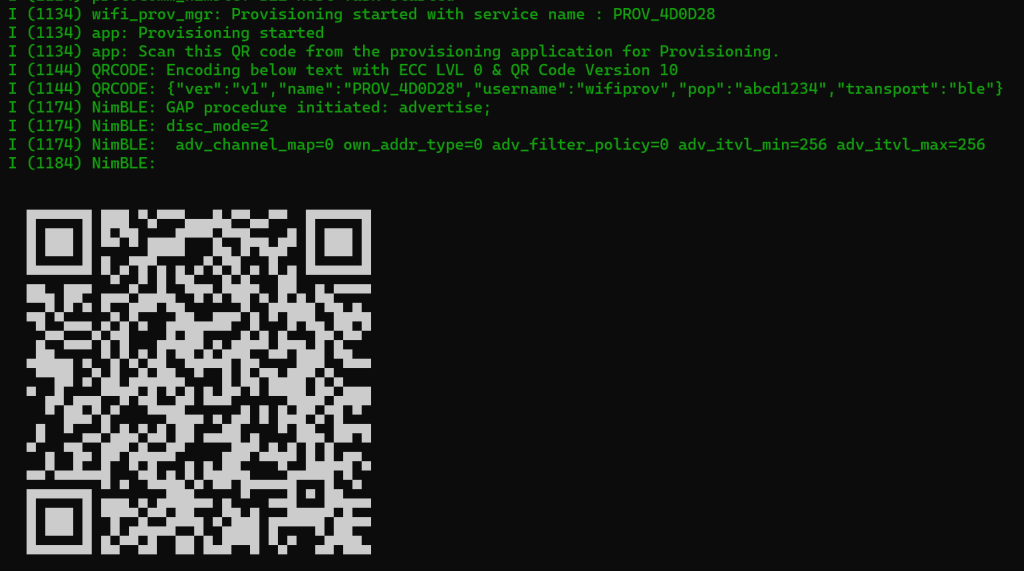
📷 QR Code Generation
To make onboarding easy, the device prints a QR code to the terminal:
wifi_prov_print_qr(service_name, username, pop, PROV_TRANSPORT_BLE);
Example output:
✅ Already Provisioned?
If the ESP32 is already provisioned, it skips BLE and directly connects to the saved Wi-Fi:
if (provisioned) {
    wifi_prov_mgr_deinit();
    wifi_init_sta();  // Start station mode directly
}
📌 Configuration Tips
Make sure to enable the following in menuconfig:
-> Example Configuration
-> Security version: Security 2 (recommended)
-> Proof of possession: “abcd1234”
-> BLE Transport: Enabled
-> Show QR Code: Enabled
Enable BLE and BT settings:
-> Component config
   -> Bluetooth
      -> Enable Bluedroid stack
      -> Enable Bluetooth controller
Testing the Setup
1. Flash firmware code to the ESP32.
2. Open the serial monitor.
3. Scan the QR code with the mobile app.
4. Select your Wi-Fi network and enter its password.
5. Wait for the device to print the assigned IP.
You can find the full code repo here.
🚀 Conclusion
BLE provisioning using a QR code offers a secure and user-friendly way to configure IoT devices like ESP32. By using Espressif’s libraries and mobile app, you can make your product onboarding seamless and scalable.